Selecting features using attribute conditions
Select features whose attributes meet a condition with Select by attribute, Select by expression and the table's filter expression, and extract them to a new layer.
You will learn
- Build a condition with Select by attribute.
- Combine conditions in an expression.
- Create a new layer from the matching features.
Prerequisites
Data for this tutorial
Wards (synthetic) Download wards.geojson
- Format
- GeoJSON
- Geometry
- Polygon
- CRS
- EPSG:32643 (WGS 84 / UTM zone 43N)
- Content
- 84 wards (31 peri-urban, 19 rural, 34 urban), 333,497 residents
- In Orbis
- Browser panel ▸ Tutorial sample data (synthetic) ▸ Wards, or Load complete tutorial pack.
Fields used in the tutorials
| Field | Type | Description |
|---|---|---|
ward_id | text | Ward code W01 to W84. |
ward_name | text | Ward name. |
zone | text | urban, peri-urban or rural. |
population | integer | Residents. |
households | integer | Households. |
area_km2 | real | Ellipsoidal area in km². |
density_km2 | real | Persons per km². |
literacy_rate | real | Literate share, per cent. |
Licence: CC0 1.0. All tutorial data is synthetic and generated by Orbis. About the datasets
The task
You want the wards that meet a condition: urban wards with more than 5,000 residents. Orbis has a simple tool for one condition and an expression tool for any combination.
Steps
One condition
- Add Wards and open the Toolbox tab. Search for
select by attributeand click Select by attribute.
- Choose Wards (synthetic) as Input layer,
zoneas Field,=as Operator and typeurbanas Value. Keep Selection mode at Create new selection and click Run. The 34 urban wards are selected.
Several conditions
Open Select by expression. Type this expression, or build it with the Add a condition row under the expression box (choose a field, an operator and a value, then Add condition):
"zone" = 'urban' AND "population" > 5000Field names are written in double quotes, text values in single quotes. The line under the box shows the result for the first feature, or the error if the expression is not valid.
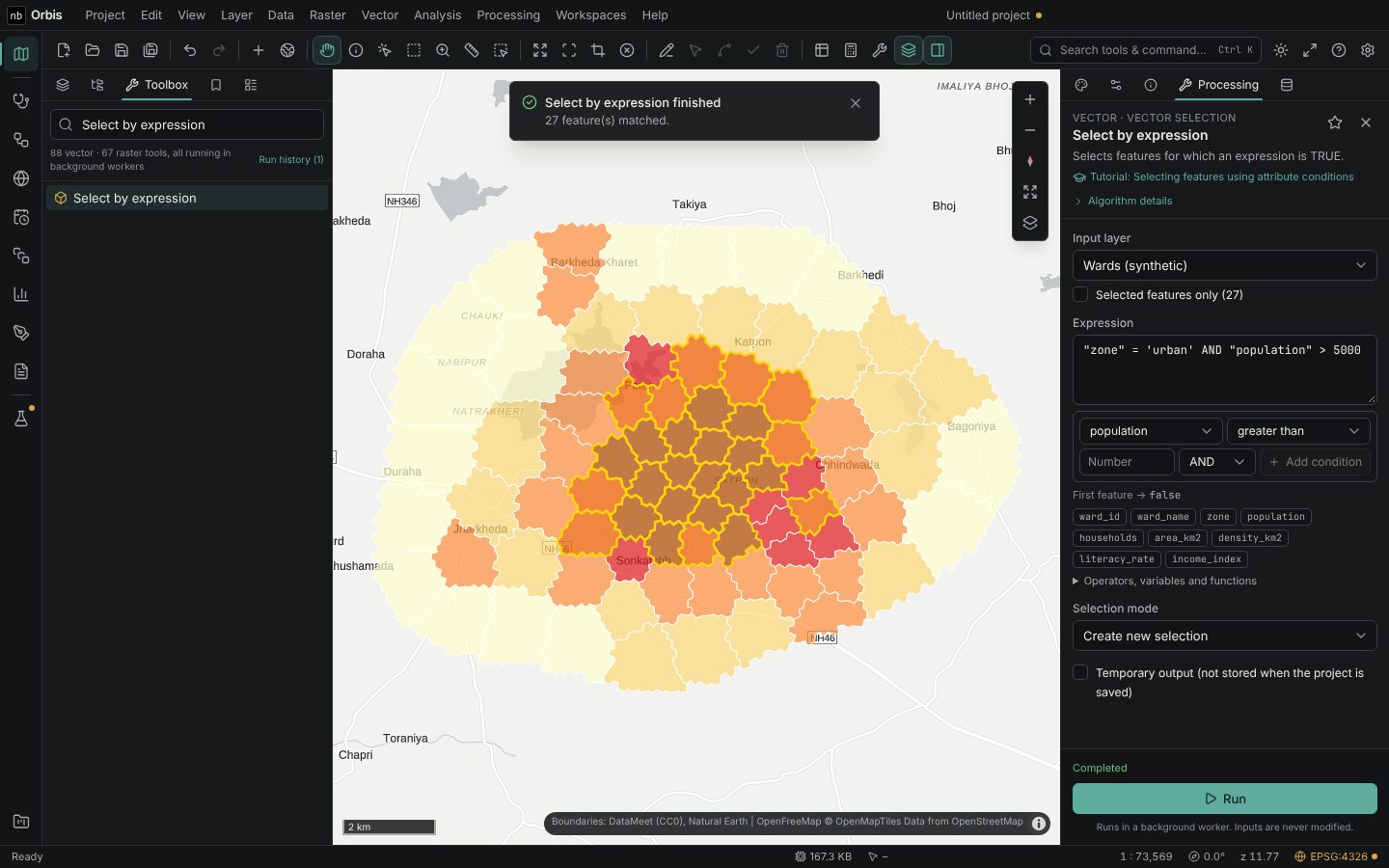
Conditions can be typed or added with the condition builder.
- Click Run. The notification says how many wards matched.
A new layer from the matches
- To keep the matching wards as their own layer, run Extract by expression with the same expression. It creates a new layer and leaves Wards unchanged.
Expected result
27 wards are selected (or extracted to a new layer): the urban wards with more than 5,000 residents. One more ward has over 5,000 residents but is not urban. The attribute table's counter shows the number.
Common mistakes
- Quotes.
"zone" = "urban"compares two fields; text values need single quotes:'urban'. - Case.
=compares text exactly;'Urban'does not matchurban. UseILIKEfor a case-insensitive match:"zone" ILIKE 'urban'. - NULL.
"population" > 5000is not true for empty values. Test them with"population" IS NULL.
Troubleshooting
- "Unknown field". The field name is misspelled or the expression is run on another layer. Click a field name below the expression box to insert it correctly.
- No features are selected. Check the values with Field statistics & unique values in the attribute table header menu.