
Saving and managing your work
Save projects in the browser, export portable .orbis.zip packages with your data, open them again and keep backups.
You will learn
- Save a project in the browser and open it again.
- Export a package that contains the project and its data.
- Understand where projects are stored and how to back them up.
Prerequisites
The task
A project holds your layers, styles, workflows, layouts and analysis history. Orbis stores projects in your browser's storage, so you can close the tab and continue later on the same computer and browser. For backups and for sharing, you export a package file.
Steps
- Give the project a name: click Untitled project in the title bar, type a name and press Enter.
- Choose Project ▸ Save project (Ctrl+S). The dot next to the project name disappears when everything is saved.
- To continue later, choose Project ▸ Open project… (Ctrl+Shift+O) and pick it from the list.
- For a backup or to share the project, choose Project ▸ Export project package (.orbis.zip). The package contains the project and its data, with checksums so that damaged files are detected when it is opened.
The Project Manager workspace (activity bar, last icon) lists the projects in this browser, checks their data sources, and manages storage.
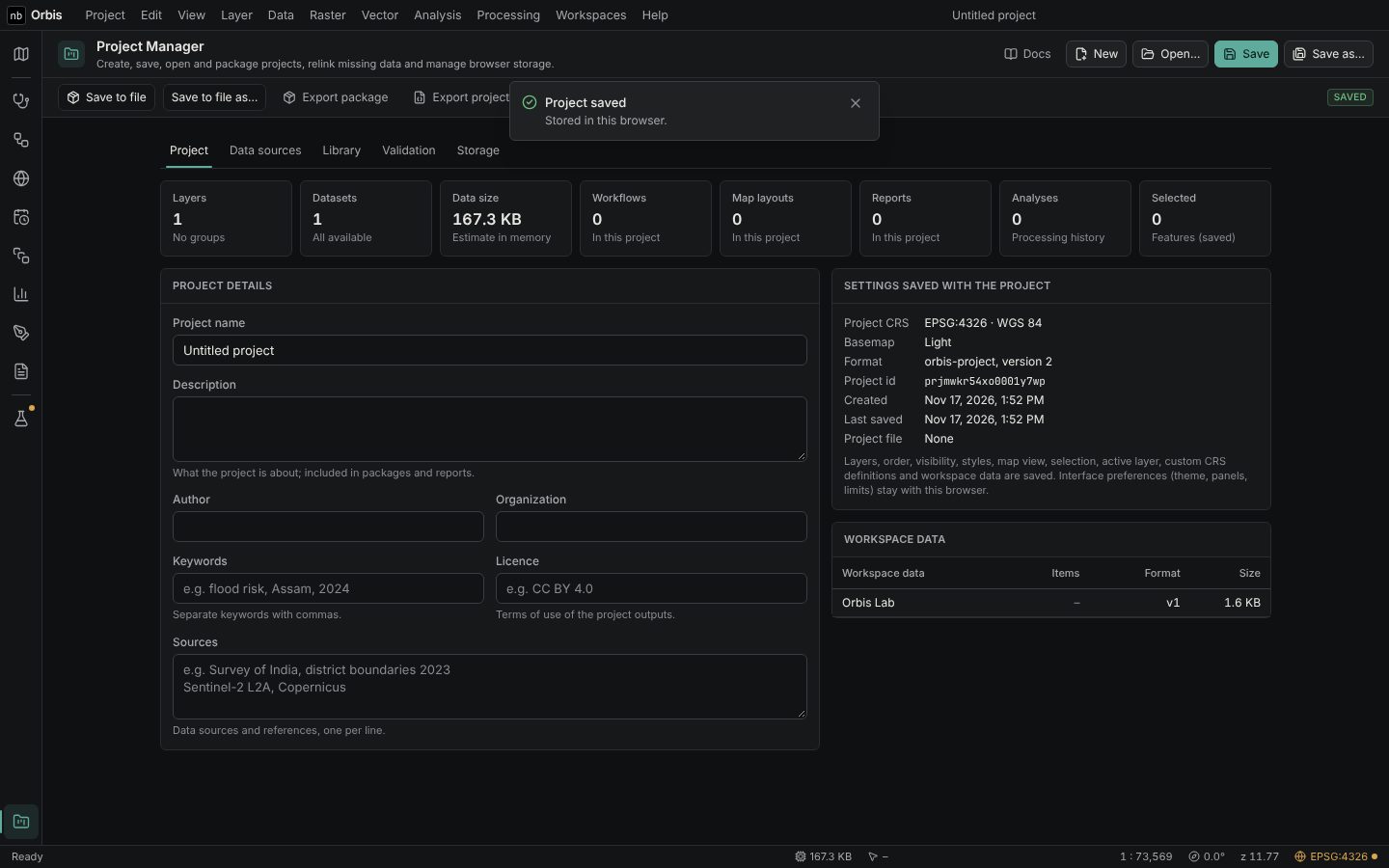
The Project Manager workspace.
Expected result
The project appears in Open project… after a reload of the page, and you have an .orbis.zip file that opens the same project on another computer.
Common mistakes
- Relying on browser storage only. Clearing the site data of your browser deletes saved projects. Export packages for anything you need to keep.
- Closing with unsaved edits. Orbis warns you when you close the tab with unsaved changes or an open edit session.
Troubleshooting
- A layer is missing after opening a project. Layers that were added from files are stored with the project when you save it; layers from web services need the service to be reachable. The Data sources tab of the Project Manager lists missing sources and lets you relink them to files.
- Storage is full. The Storage tab of the Project Manager shows how much space each project uses and lets you delete old ones.