
Workflow Builder and batch processing
Turning your processing history into a workflow
Use Run history in the Toolbox to repeat earlier tool runs, reopen them with their settings, and save a chain of runs as a Workflow Builder workflow.
You will learn
- Use Run history to repeat and reopen runs.
- Save a chain of runs as a workflow.
- Understand what is kept and what is not.
Prerequisites
Data for this tutorial
Facilities (synthetic) Download facilities.geojson
- Format
- GeoJSON
- Geometry
- Point
- CRS
- EPSG:32643 (WGS 84 / UTM zone 43N)
- Content
- 97 points: 3 hospitals, 6 health centres, 26 clinics, 58 schools, 4 colleges
- In Orbis
- Browser panel ▸ Tutorial sample data (synthetic) ▸ Facilities, or Load complete tutorial pack.
Fields used in the tutorials
| Field | Type | Description |
|---|---|---|
facility_id | text | F001 to F097. |
name | text | Facility name. |
category | text | health or education. |
type | text | hospital, health_centre, clinic, school or college. |
ownership | text | public or private. |
capacity | integer | Beds or students. |
opened | integer | Year opened. |
Licence: CC0 1.0. All tutorial data is synthetic and generated by Orbis. About the datasets
The task
You ran Buffer and then Calculate area on its result in the Toolbox, and now you want to keep the two steps for later. Orbis records every run, so you do not need to rebuild them by hand.
Steps
- Run Buffer on Facilities (synthetic) with Distance
500, then run Calculate area on the buffer layer.
In the Toolbox, click Run history (next to the number of tools). The runs of this session are listed newest first, with their status, time, duration and main parameters.
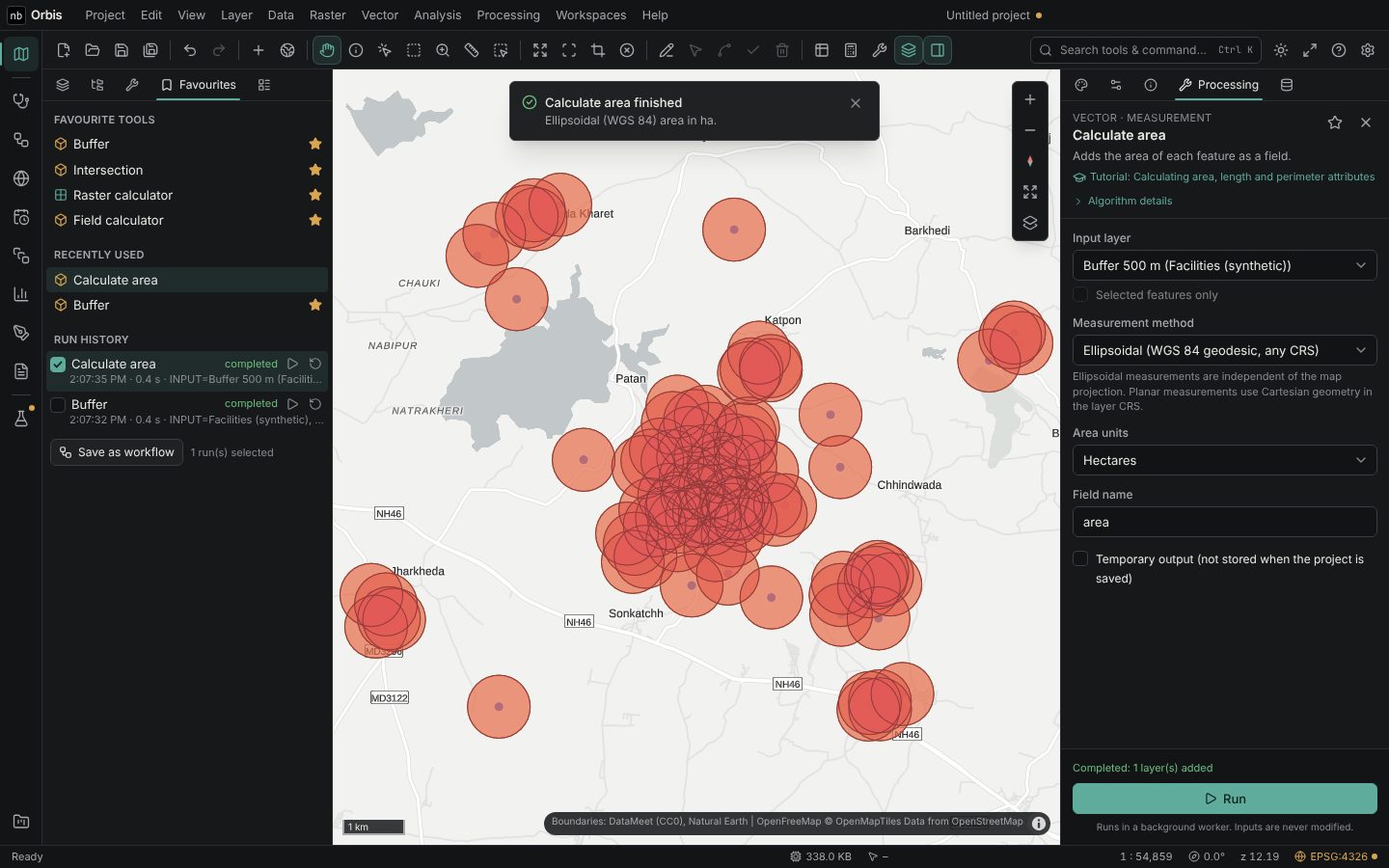
Run history with two completed runs.
- For any run, ▷ runs it again with exactly the same settings, and ↺ opens the tool with these settings so that you can change them first.
Tick Calculate area and click Save as workflow. Orbis builds a workflow and opens it in the Workflow Builder:
- each run becomes a step with the values it ran with;
- the Buffer run that produced the input of Calculate area is included automatically, and connected;
- Facilities becomes an input node bound to that layer;
- the final result goes to a Project layer output.
- Click Run in the Workflow Builder to check that it gives the same result, then rename it in the Workflow tab.
Expected result
A workflow with three connected nodes (input, Buffer, Calculate area) and an output, which reproduces the two runs.
Common mistakes
- Expecting the history to be saved. Run history lasts for the browser session. Save runs as a workflow to keep them with the project.
- Including selection runs. Runs that only changed a selection cannot become steps; Orbis lists them with the reason.
Troubleshooting
- Run again is refused. An input layer was removed or the settings are no longer valid; open the run with ↺ and adjust it.
- The workflow uses all features. When a run used only the selected features of an intermediate result, the workflow passes all features of that result, and a warning says so.